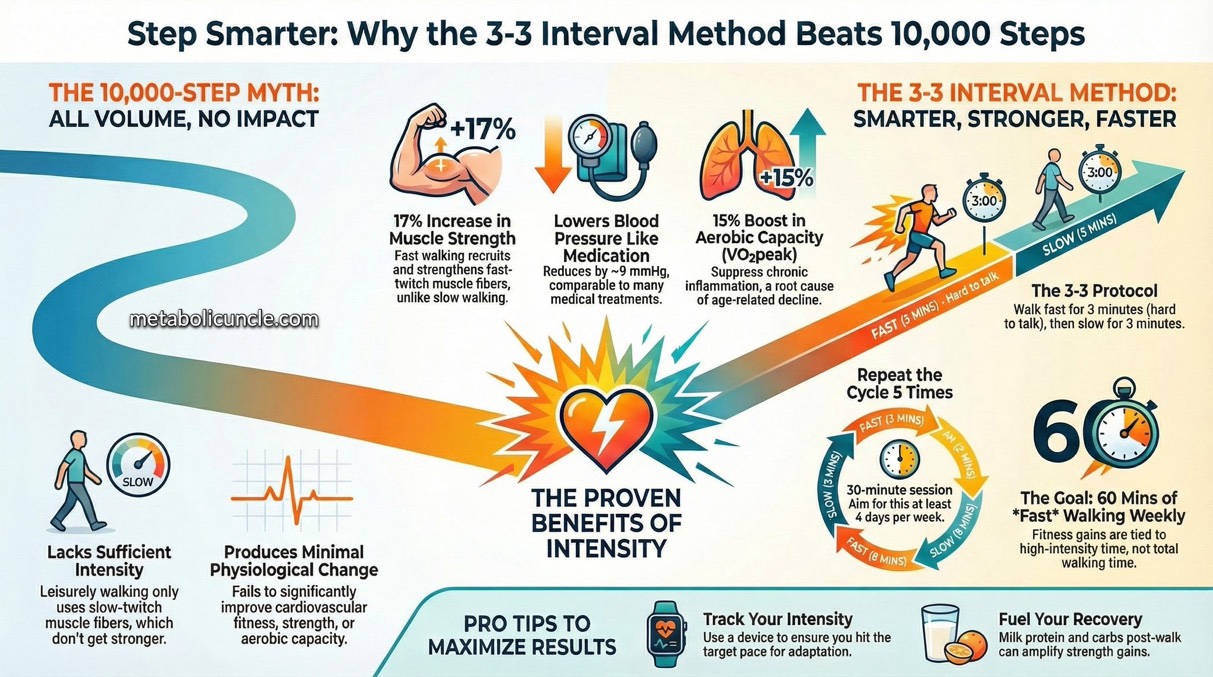
based on https://x.com/metabolicuncle/status/2005746483753279701?s=61
- The post details the “Japanese 3-3 Walking Method,” an interval walking training (IWT) protocol from Shinshu University, alternating 3 minutes of brisk walking at 70% peak aerobic capacity with 3 minutes slow recovery, repeated 5 times per session, 4 days weekly, prioritizing intensity over total steps for better outcomes.
- Backed by peer-reviewed studies, including those by Hiroshi Nose, IWT yields 13-17% gains in leg strength, 8-15% increases in VO2peak, 9/5 mmHg blood pressure reductions, and reduced inflammation via NFKB gene methylation, surpassing moderate walking’s minimal effects.
- It critiques the 10,000-step goal for lacking intensity to activate fast-twitch fibers or drive adaptations, stressing adherence via trackers and post-walk milk protein/carbs for amplified benefits like 8% extra thigh strength in older adults.
You can easily use your Apple Watch to track the Japanese 3-3 Walking Method (3 minutes brisk walking + 3 minutes slow recovery, repeated 5 times for ~30 minutes). The built-in Workout app supports custom intervals perfectly, and it continuously monitors your heart rate (BPM) throughout.
Recommended Way: Create a Custom Workout in the Apple Watch Workout App
This is the best native option—no extra apps needed. It provides haptic/vibration alerts at the end of each interval, shows upcoming segments (“Up Next” view), and tracks real-time BPM, calories, pace, distance, and heart rate zones.
Step-by-Step Setup (on your Apple Watch):
- Open the Workout app.
- Scroll to Outdoor Walk (or Indoor Walk if on a treadmill) and tap the three dots (…) in the top-right corner.
- Tap Create Workout (or Custom if it appears).
- Tap Custom again, then optionally skip or add a short Warmup/Cooldown (e.g., 3 minutes Open for warmup).
- Tap + Add > Work > select Time > set to 3 minutes.
- (Optional: Add a heart rate alert here for the brisk interval—tap Alerts > Heart Rate > choose a zone, e.g., Zone 4 for high intensity.)
- Tap + Add > Recovery > select Time > set to 3 minutes.
- (Optional: Add a lower heart rate alert here, e.g., Zone 2.)
- Now tap Repeat, select the Work + Recovery pair, and set repeats to 5 (or 4 if you added a warmup).
- Scroll down, tap Custom Title to name it (e.g., “Japanese 3-3 Walk”).
- Tap Save or back out to finish.
How to Use It:
- Start the custom workout from the Workout app.
- During the session:
- Turn the Digital Crown to see Heart Rate Zones or current BPM.
- Swipe or crown to Up Next for remaining time in the current interval.
- The watch vibrates and pings when switching (brisk → slow or vice versa).
- It auto-advances—no manual taps needed.
- After, view detailed splits by interval, including average BPM per segment.
This integrates fully with Apple Health for rings, VO2 max estimates, and trends.
Monitoring BPM and Intensity Tips
- Apple Watch measures heart rate continuously during workouts.
- View live BPM: Add it as a prominent metric in Workout Views (edit via the three dots > Workout Views).
- Heart Rate Zones: Automatically calculated (or manual in Watch app on iPhone > Workout > Heart Rate Zones). Aim for ~70% max HR (Zone 4) on brisk intervals—watch alerts if you set them per step above.
- For brisk intervals: Walk as fast as possible without jogging (e.g., power walk to elevate HR significantly).
- Post-workout: Check the Fitness app on iPhone for graphs of BPM over time.
Alternatives If You Want More Features
- Third-party apps like Intervals Pro (highly rated for Apple Watch) have pre-built “Japanese Interval Walking” templates, voice cues, and advanced HR tracking.
- Dedicated apps like JWT – Japanese Walking Timer exist for exact 3-3 guidance.
The custom Workout method is free, seamless, and gives excellent BPM monitoring—perfect for this protocol. Start with 4+ sessions per week for the researched benefits! If your watch is on watchOS 9+, this works flawlessly.
Leave a Reply
You must be logged in to post a comment.