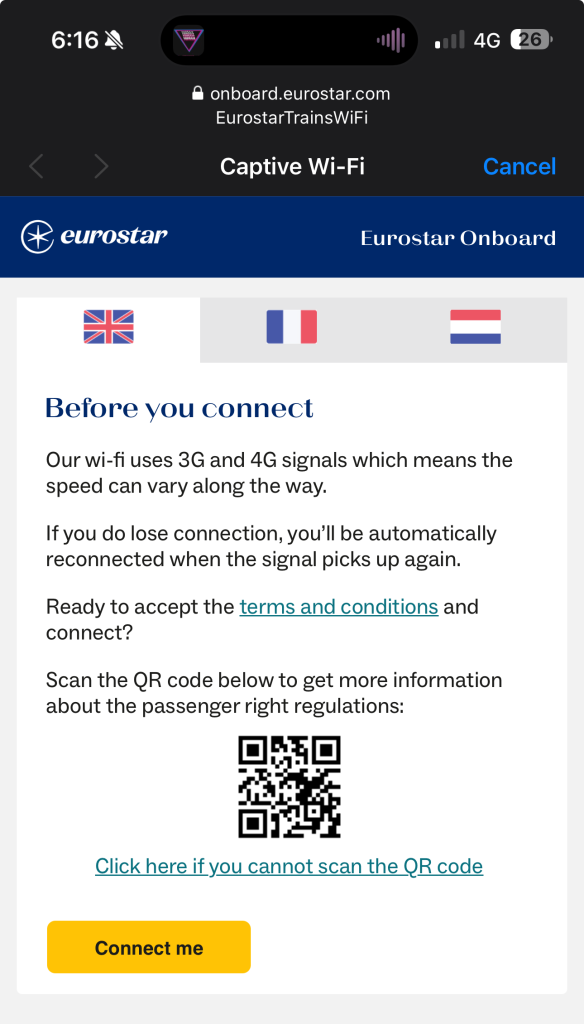
If the captive Wi-Fi portal fails to appear on your MacBook while trying to connect to Eurostar Wi-Fi, there could be several reasons. Here’s a troubleshooting guide to help you resolve the issue:
Common Causes and Solutions:
1. Automatic Redirect Not Working
• Cause: The captive portal may not redirect you automatically to the login page.
• Solution:
1. Open a web browser (Safari, Chrome, etc.).
2. Manually type the following into the address bar:
This often forces the portal to appear.
On EuroStar this redirects to https://register.onboard.eurostar.com which is not allowed before pressing the yellow connect button, so maybe the only way is using this hack to copy the MAC address from your phone or even watch: https://tidbits.com/2018/11/28/how-to-work-around-wi-fi-hotspot-captive-portals-on-browserless-devices/
3. Alternatively, try accessing any non-secure (HTTP, not HTTPS) website, like http://neverssl.com.
2. DNS Configuration Issues
• Cause: Your MacBook may be using custom DNS settings (e.g., Google’s 8.8.8.8) that bypass the captive portal.
• Solution:
1. Open System Preferences > Network.
2. Select the Wi-Fi network you’re trying to connect to, and click Advanced.
3. Go to the DNS tab and remove any custom DNS servers by selecting them and clicking the – button.
4. Click OK, then reconnect to the Wi-Fi.
3. Ad Blockers or VPNs
• Cause: Ad blockers or VPNs can prevent the captive portal from loading.
• Solution:
1. Disable any ad blockers or browser extensions temporarily.
2. If you’re using a VPN, disconnect it before trying to connect to the Wi-Fi.
4. Cache or Temporary Network Issues
• Cause: Cached network settings or glitches may prevent the portal from loading.
• Solution:
1. Open System Preferences > Network.
2. Select the Eurostar Wi-Fi and click Forget This Network.
3. Reconnect to the Wi-Fi network and check if the portal appears.
5. Low Signal Strength
• Cause: A weak signal may disrupt the connection and prevent the portal from loading.
• Solution:
1. Move closer to the Wi-Fi access point, such as the center of the train carriage.
2. Reconnect and try again.
6. System Updates
• Cause: Outdated macOS or browser software may cause compatibility issues with the Wi-Fi system.
• Solution:
1. Make sure your macOS is up to date:
• Go to System Preferences > Software Update.
2. Ensure your browser is updated to the latest version.
7. Eurostar Network Issue
• Cause: The Eurostar Wi-Fi system may be experiencing technical problems.
• Solution:
1. Ask the train staff if there are reported issues with the Wi-Fi.
2. Try reconnecting after a few minutes, as service disruptions are sometimes temporary.
Quick Steps Summary:
1. Try accessing http://captive.apple.com manually.
2. Remove custom DNS settings.
3. Disable ad blockers, extensions, and VPNs.
4. Forget and reconnect to the network.
5. Ensure your MacBook is up to date.
If these steps don’t resolve the issue, it’s likely a problem with Eurostar’s Wi-Fi system rather than your MacBook. Let me know if you’d like more specific guidance!
Leave a Reply
You must be logged in to post a comment.